
Guide to user accounts, login, and permission
Learn how user roles and permissions work in ApostropheCMS — what admins, editors, contributors, and guests can each do, how to invite and manage users, and when Advanced Permission applies.
-
- Beginner
- 5 min read
- Administering Sites
- Last Updated August 5, 2026
What you'll learn
-
How user accounts work in ApostropheCMS — and why roles matter
-
What each built-in role (Admin, Editor, Contributor) can and cannot do
-
How to invite new users, update their roles, and remove access
-
How to log in, reset your password, and manage your own account
-
When the Advanced Permissions extension applies and what it adds
Understanding roles in ApostropheCMS
Every user account in ApostropheCMS is assigned a role, and that role determines what they can see, create, edit, and publish across your site. Roles are not cosmetic labels; they are enforced by the system. A user who doesn't have publish access cannot push content live, regardless of how the request is framed.
This design is intentional. It creates a clear separation between contributors who produce content and editors or administrators who are responsible for what goes live. It also means that mistakes are harder to make by accident, so a writer can't inadvertently publish a half-finished draft.
Understanding roles also helps you manage your team. When you know what each role can do, you can give people the right level of access from the start without either blocking them from their work or handing them more control than they need.
The four built-in roles: what each one can do
ApostropheCMS ships with four roles. Here's what each one means in practice.
Admin
Admins have full access to the CMS. They can create and manage all content types, manage user accounts, access Global Settings, configure permissions, and publish anything on the site. Most sites have one or two admins, typically the site owner, a technical lead, or a senior editor responsible for the whole site.
Editor
Editors can create, edit, and publish content. They have broad access to pages and pieces, can manage media, and can see the full content of other users' drafts. They cannot manage user accounts or access Global Settings.
This is the right role for most senior content team members: people who need to do their work end-to-end — drafting, revising, and publishing — without needing access to site-wide configuration.
Contributor
Contributors can create and edit content, but they cannot publish. When a contributor finishes their work, they submit it for review. A document submitted by a contributor shows up in the Editor or Admin's review queue, where it can be approved and published.
This is the right role for writers, freelancers, or anyone whose work should go through an editorial review before it reaches the public. It's also a good default for anyone new to your team. You can always upgrade their role once they're familiar with the workflow.
Guest
ApostropheCMS also includes a fourth role, Guest, for sites with content restricted to logged-in users. Guests can log in and read that content, but have no access to the admin bar or any editing tools. This is the right role for members, subscribers, or anyone who needs to view gated content without being part of the editorial team.
Role summary
| Role | Create & edit | Publish | Manage users | Global Settings |
|---|---|---|---|---|
| Admin | ✓ | ✓ | ✓ | ✓ |
| Editor | ✓ | ✓ | ✗ | ✗ |
| Contributor | ✓ | ✗ | ✗ | ✗ |
| Guest | ✗ | ✗ | ✗ | ✗ |
How to invite a new user
Adding a new team member to your ApostropheCMS site requires Admin access. If you don't see the option described below, you're likely logged in as an Editor or Contributor — ask your site administrator to handle the invitation.
- In the admin bar at the top of your site, look for the "Users" item. It may be nested under an "Admin" menu depending on how your site is configured.
- Click "Users" to open the Users manager.
- Click "+ New User" in the upper right corner.
- Fill in the required fields:
- Name — the user's display name
- Username — used to log in; lowercase, no spaces
- Email — where the invitation or password reset link will go
- Password — set an initial password, or use the reset flow to let the user set their own
- Role — select Admin, Editor, or Contributor based on what this person needs to do
- Click "Save" to create the account.
The new user can now log in at your site's login URL — typically yourdomain.com/login — using the credentials you've set.
How to log in and reset your password
Your site's login page is typically at yourdomain.com/login. Enter the username and password your site administrator gave you when your account was created.

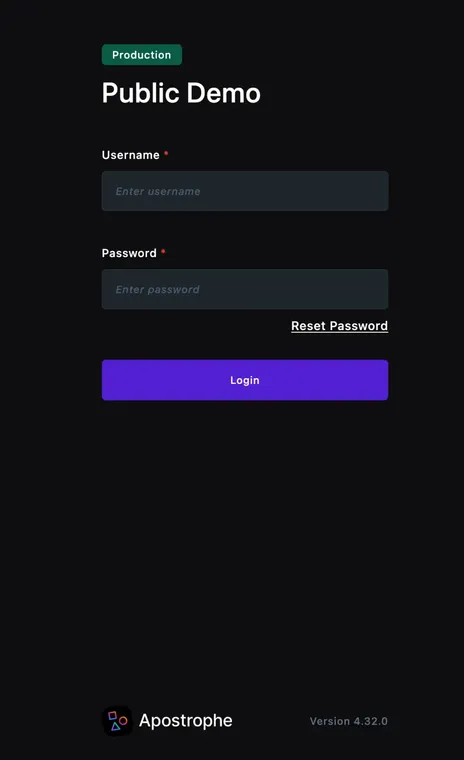
If you don't remember your password, click "Reset Password" on the login screen and enter your email address. You'll receive a password reset link — click it and choose a new password. Reset links expire after a set time, so if yours doesn't work, request a new one rather than trying an old email.


Once logged in, you can update your own account at any time. Look for your name or avatar in the admin bar and select "My Account" (or similar, depending on your site's configuration) to change your password or update your profile details.
If you're locked out and the reset email never arrives, check your spam folder first. If it still doesn't show up, your site administrator can resend an invitation or reset your account from the Users manager.
When Advanced Permissions applies
The four built-in roles cover most sites. But if you're managing a larger team — departments that should only touch their own content, freelancers who need access to specific articles rather than the whole site, or approval chains more complex than "contributor submits, editor publishes" — the built-in roles can start to feel like a blunt instrument.
For that situation, ApostropheCMS offers the Advanced Permissions extension, available on Apostrophe Pro and Apostrophe Assembly plans. It adds:
Custom groups — instead of the four fixed roles, admins can create custom user groups for specific departments or teams with their own permission sets.
Content-based permissions — restrict a group to particular content types, like a group that can only edit blog posts.
Per-document permissions — grant access to individual pages or pieces rather than an entire content type, so a group can be assigned granular permissions on specific pages and pieces instead of every document of that kind.
A practical example: a freelance writer could be granted permission to edit only their own assigned articles, without editing anything else on the site.
If you're not sure whether your site has this installed, check with your site administrator — Advanced Permissions changes what you'll see in the Users manager (an added "Groups" option) but only when it's active.