
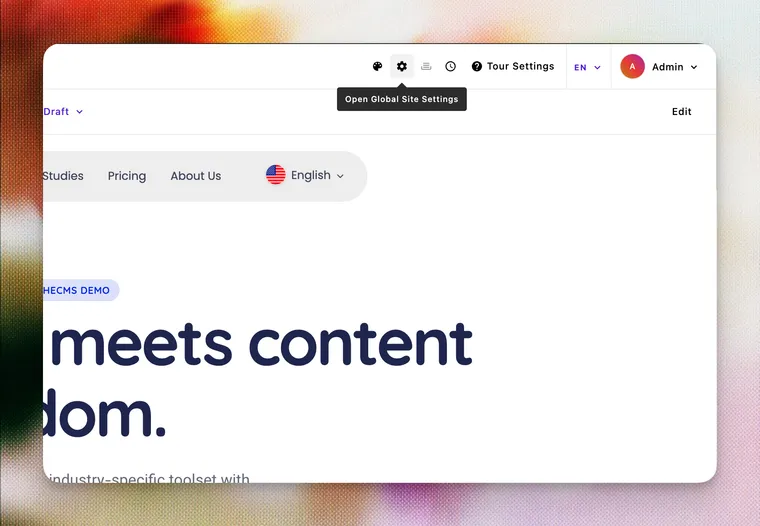
The gear icon in the upper right corner of the admin bar opens Global Settings — the document that controls site-wide content and configuration. This is where you'll find settings for your organization's information, navigation, analytics, SEO, favicon, and any other fields your development team has configured for your project.
Guide to global settings
Learn what ApostropheCMS global settings are, how to access them, and what you'll find in the global settings area, from site identity and navigation to SEO configuration and favicon management.
-
- Beginner
- 8 min read
- Content Management
- Last Updated August 4, 2026
What you'll learn
-
What ApostropheCMS Global Settings is and why changes there affect your entire site
-
How to find and open Global Settings
-
What kinds of content and settings typically live there
-
Which tabs extensions like the SEO extension or Favicon extension add and what to do if you don't see a tab you're expecting
What is Global Settings in ApostropheCMS?
Global Settings is a single document in ApostropheCMS whose contents are available on every page of your site, all the time. That makes it the right home for things that need to be consistent across your whole site: your organization's name and contact details, social media links, footer content, navigation, analytics IDs, and site-wide SEO and AI crawler configuration.
Change something in Global Settings, and that change is reflected everywhere it's used, you don't have to track down every page. It's also where extensions like the SEO extension store settings that affect how search engines and AI systems understand and index your entire site, not just individual pages.
How do I access Global Settings?
Global Settings is accessed from the admin bar, the bar across the top of your site when you're logged in.
- Look for the gear icon in the upper right corner of the admin bar.
- Click it to open the Global Settings editor.
- You'll see one or more tabs along the side of the modal. Click a tab to see the fields it contains.
- Make your changes, then click Update to save.
Changes saved in Global Settings take effect across the site immediately after you click Update. There's no separate publish step. Global Settings doesn't have a draft/publish workflow the way pages and pieces do. If you update a field that appears in your site's footer, for example, that change goes live right away.
The tradeoff for editors: Because there's no draft state, you can't stage changes to Global Settings and preview them before they go live. If your site has a staging environment, your development team may recommend making significant Global Settings changes there first.
What will I find in Global Settings?
The specific fields in your ApostropheCMS Global Settings are configured by your development team based on your project's needs. That said, some content categories appear on most Apostrophe-powered sites.

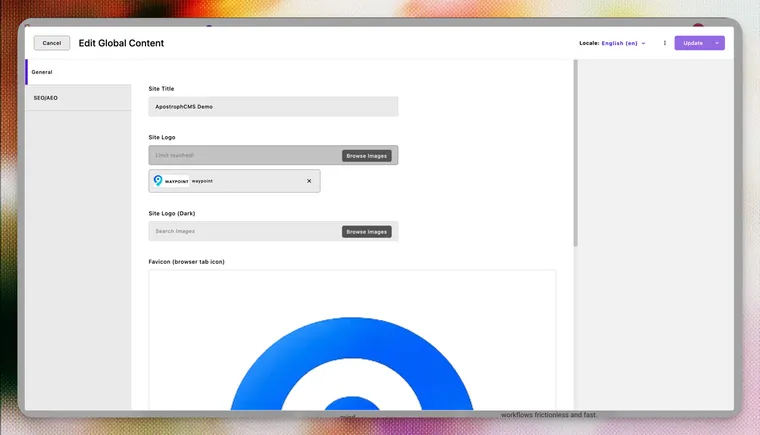
Site identity and organization information
Fields for your organization's name, logo, address, phone number, and contact email. These are often used in the site footer, and they're also the foundation for your site's organization-level structured data — the machine-readable information that tells search engines and AI systems who you are, not just what your pages say. Getting these fields filled in accurately is one of the most impactful things an editor can do for both SEO and how your organization appears in AI-generated answers.
Social media links
URLs for your organization's social media profiles — LinkedIn, X/Twitter, Instagram, YouTube, and so on. Storing these in Global Settings means your developer only has to wire them up once; you maintain them in one place.
Navigation
Some sites manage header or footer navigation through Global Settings, using relationship fields to link to pages or manually entered link lists. If your site has a "Navigation" tab in Global Settings, this is likely where you manage the links that appear in your header or footer, rather than editing a template directly.
Third-party service IDs
Things like a Google Analytics Measurement ID, a Google Tag Manager container ID, or a live chat widget embed code. These are typically set once by your development team during launch and rarely need to change. You'll see them in Global Settings because they need to be editable without a code deployment — but in practice, most editors won't touch these fields.
Extension tabs you might see
Some ApostropheCMS extensions add their own tab to Global Settings. Which tabs you see depends on which extensions your development team has installed. Here are the most common ones.
SEO/AEO tab
Added by the @apostrophecms/seo extension. This is one of the most consequential tabs in Global Settings. It's where you control how your entire site is understood and indexed by search engines and AI systems.
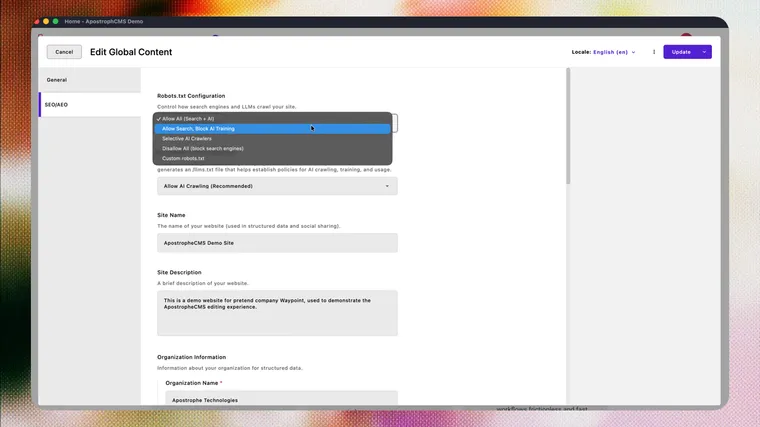
The SEO/AEO tab contains:
Organization structured data: your name, logo, address, and contact information in a format search engines and AI tools can read unambiguously. This runs on every page automatically and is the foundation for how your organization appears in rich search results and AI-generated answers.
Analytics integrations: Google Analytics (GA4), Google Tag Manager, and Google Search Console verification.
Robots.txt configuration: site-wide rules for which crawlers can access your content, including controls for AI training crawlers from OpenAI, Google, Anthropic, and others. Misconfiguring this can prevent search engines from indexing your site, so treat it carefully.
llms.txt: an emerging standard for communicating to AI assistants how they should interact with your content. Relevant if AI search visibility and generative engine optimization (GEO) are priorities for your team.
For a full walkthrough of everything in the SEO/AEO tab, see the SEO Tools editor guide.
Favicon tab
Added by the @apostrophecms/favicon extension. This tab contains a single image field for uploading or replacing the favicon: the small icon that appears in browser tabs, bookmarks, and on mobile home screens.
How to update your favicon:
- Open Global Settings via the gear icon in the admin bar.
- Click the "Favicon" tab.
- Click the image field to open the media picker, and select or upload your favicon image. A square image works best; the extension crops automatically if needed.
- Click Update to save.
Other tabs
Extensions your development team has installed — or custom fields they've built specifically for your project — may add additional tabs. Common examples include a "Navigation" tab for managing header and footer links, a "Cookie Banner" tab for consent management settings, and a "Social" tab for grouping your social media URLs.
If you see a tab that isn't described here and you're not sure what it's for, your development team or internal documentation is the right place to start.
Who can edit Global Settings — and why access is restricted
Because ApostropheCMS Global Settings affects your entire site, access to it is typically restricted to administrators or senior editors. A change to the wrong field can break navigation, disable analytics, misconfigure crawler access, or remove content that appears on every page — so most Apostrophe-powered sites don't give all editors access to it.
If you need to make a change in Global Settings but don't see the gear icon in your admin bar, your user role likely doesn't include access. Ask your site administrator to either make the change for you or adjust your permissions if ongoing access makes sense for your role.
Common questions
A regular page has its own URL, can be published or drafted independently, and only affects itself. Global Settings is a single document with no URL of its own — its contents are available on every page of the site simultaneously. It also has no draft/publish workflow; changes go live the moment you click Update.
Global Settings is configured by your development team for your specific project. The fields and tabs you see are intentional and they reflect the decisions your team made about what editors need to control site-wide. If you're missing something you expected, or see fields you don't recognize, ask your development team for a walkthrough.
No. When you click Update, your changes go live immediately across the site. There's no way to preview changes before they take effect, so take care with fields that affect prominent parts of your site, like the header, footer, navigation, or crawler settings.
Some fields — like analytics IDs, robots.txt settings, and embed codes — can disrupt site functionality or search visibility if changed incorrectly. If you're unsure what a field does, don't edit it without checking with your development team first. For fields you manage regularly, like contact information or social links, the risk is low.
If the gear icon doesn't appear in your admin bar, your user role doesn't include access to Global Settings. Contact your site administrator to either make the change on your behalf or grant you the appropriate permissions.
The SEO/AEO tab is added by the @apostrophecms/seo extension, which is a separate installation. If you don't see it, the extension may not be installed on your project. Ask your development team — and see the Editor guide: Working with SEO tools for a full overview of what the extension covers.
Key takeaways
-
ApostropheCMS Global Settings is a single document whose contents are available site-wide — changes there affect every page on your site.
-
Access it via the gear icon in the upper right of the admin bar.
-
Changes save immediately when you click Update — there is no draft or publish step.
-
What you see in Global Settings is configured by your development team. Fields typically cover site identity, social links, navigation, and third-party service IDs.
-
The organization information fields in Global Settings are the foundation for structured data that search engines and AI systems use to identify your organization across the web.
-
The SEO/AEO tab (added by the
@apostrophecms/seoextension) contains your most consequential site-wide settings: structured data, analytics, robots.txt, and llms.txt. -
Access to Global Settings is usually restricted to administrators or senior editors — because changes affect the whole site, not just a single page.