
What gets translated automatically
- All text (string) fields
- Slug fields
- Rich text areas (if enabled by your developer)
Learn how to localize and translate content in ApostropheCMS, including how to use the different localization methods, automatic translation, and RTL language support.
Localization might require developer setup first, so if you don't see a locale switcher in the admin bar, contact your dev team before proceeding.
In the multisite or multitenant version of ApostropheCMS (Assembly), content managers at the admin level can configure it without developer assistance.)
Localized documents always start as drafts, so you must publish each locale version for visitors to see it.
Localization via the Action Menu (three dots) is the recommended workflow because it handles related documents (images, referenced pieces, etc.) in one step and supports automatic translation.
The inline locale switcher is a quick way to jump to an existing locale version or create a blank one, but it does not migrate content.
Batch localization lets you localize multiple documents at once from any manager modal.
The localization and translation combined workflow supports our position that editors should always review AI output.
Import/Export Translation (Pro/Assembly) is an alternative translation approach for external translation teams; Advanced Permissions is a good way to bring translators directly into the CMS.
RTL languages (Arabic, Hebrew, Farsi) are supported in text fields and frontend display, but the ApostropheCMS admin UI remains LTR for now.
Editing the original locale after localizing does not automatically sync changes to other locales. Updates must be made manually or by re-localizing.
Localization (aka "l10n") is the process of adapting content for a specific locale: a combination of language and region (e.g., en-US, fr-CA, es-MX). It goes beyond translation: you may also need to swap images, rewrite copy for cultural fit, or adjust formatting.
ApostropheCMS localizes the content of all pages, pieces, and other documents you create and edit through the admin UI. Each locale gets its own version of a document stored separately in the database. A visitor in France sees the fr version; a visitor in Mexico sees es-MX. If you add a language picker to your website’s UI, visitors can switch between these locales. If a localized version of a page doesn't exist yet, visitors won't see that content at all and it won't fall back to the default locale automatically.
A newly localized document starts as a draft. You must publish it for visitors to see it. If you're also translating content as part of your localization flow via Automatic Translations, new
When locales are configured, you'll see a global locale selector in the top-right corner of the admin bar. This controls which locale you're currently editing. Everything you create or edit while a locale is active applies only to that locale.
There is also a locale switcher in manager modals, located to the left of the “New” button and menu so that you can quickly switch between locales for content of the same type: for example, switch to see all pages or all pieces (ie, blog posts) in another locale.
Localizing via the action menu is the primary workflow used in ApostropheCMS to localize a document and its related documents in one step.
This and other methods also allow you to translate the content into multiple languages if your site has the Automatic Translation installed.

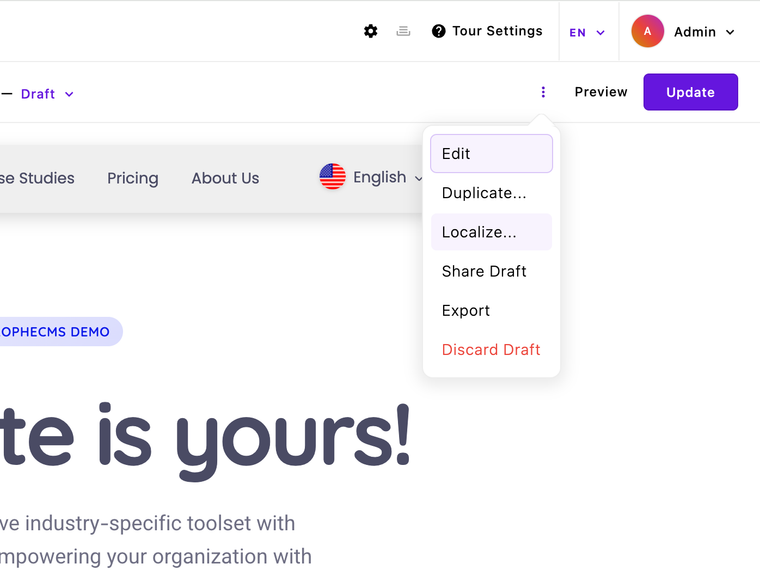
Here's how to do it:
Navigate to the page or piece you want to localize.
Click on the action menu (three dots) to the left of the button.
Select Localize.
In the localization dialog, choose how to handle related documents (e.g., pieces linked through relationship fields):
This document: Localize just the document you’re on. The easiest way to think about what this includes is to picture all of the regular copy and metadata like titles, SEO titles, and descriptions, and Open Graph fields.
This document and related documents: Creates local versions for this document (text content) and for all other documents referenced by this document. The simplest example of a related document is an image, but there are many other relationships that might exist, such as a testimonial widget placed within a document that pulls in content from testimonial and/or customer pieces. Read more on that below.
Localize only related docs: This is probably the least common option, but it’s what you would choose if you only want to localize related documents such as images.
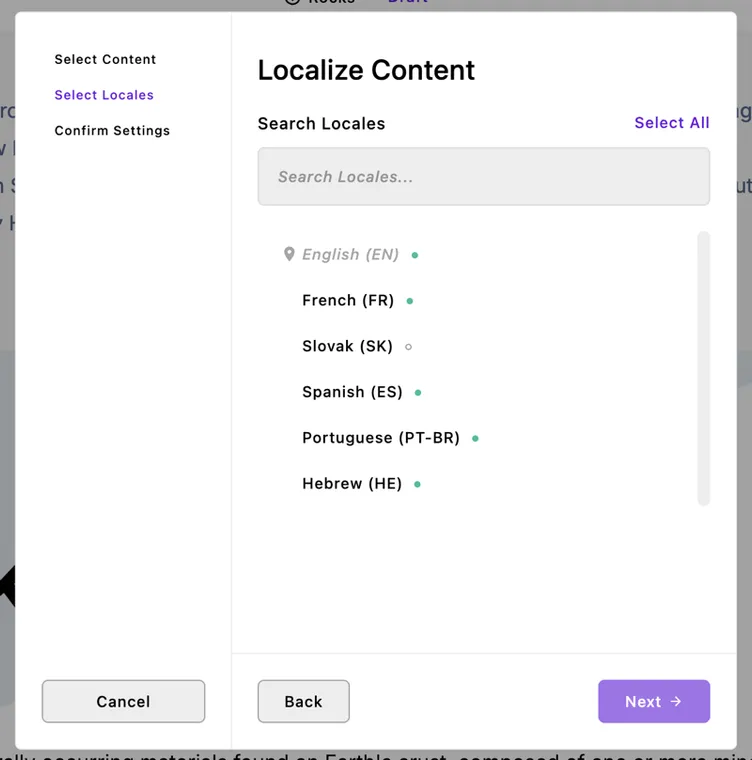
Choose which locale(s) you want to localize the document to, and whether you want to overwrite existing versions of the documents or create them as new drafts. If you want to update the documents that already exist in other locales, then you would pick the second option.
If your site has the Automatic Translation extension, you'll see a "Translate text content" checkbox — check it to have content translated automatically as it's copied to the new locale.
You can also localize a piece of content (as opposed to multiple pieces of content) from within the document's editor modal.
In ApostropheCMS, the editor modal is where you'll find settings like slug, metadata, open graph, categories, authors, and more depending on your project. It's accessed by clicking on the title from the page or piece manager, or by opening the action menu and clicking "Edit."

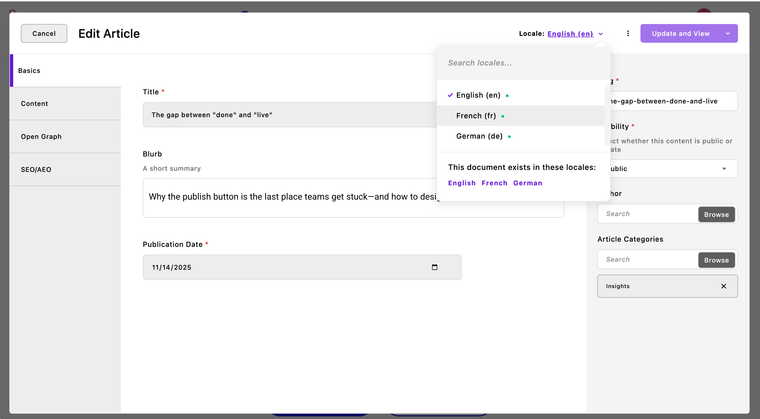
The localization flow depends on the status of the content:
If a locale version already exists, switching to it via the inline switcher takes you directly to that version for editing.
If a locale version does not exist, you’ll be asked if you want to create a blank article or localize the content of the document you were on when switching locales to this new document.

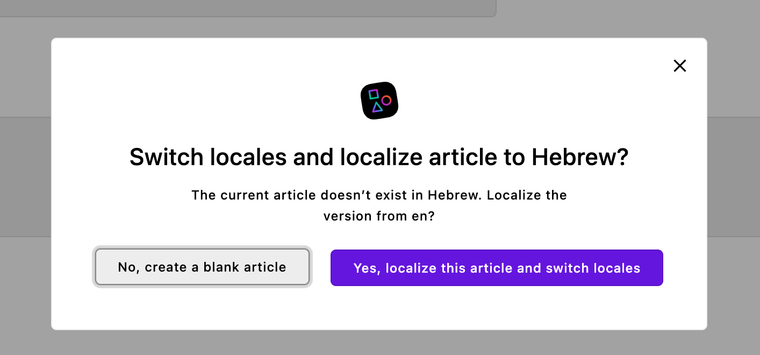
Task | How |
|---|---|
Switch the locale you're editing | Locale selector in the top-right admin bar |
Localize a page/piece (with content migration) | Context menu → Localize |
Create a blank locale version | Inline locale switcher → select target locale |
Translate automatically | Check "Translate text content" in the localize dialog (Pro) |
Bulk translate via file export | Admin bar → Import/Export Translation (Pro) |
Publish a localized document | Switch to that locale, review, click Publish |
If you want to localize multiple documents at once, you can do so from the manager modal. A manager modal is where you can see the full list of documents of a certain type, so you’ll typically have a Pages Manager and managers for any piece types, like blog posts, that are part of your website.
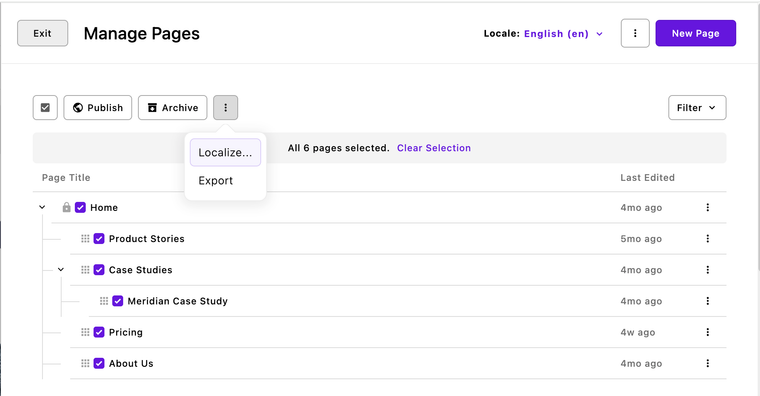
Here's how to do batch localize in ApostropheCMS:
Open the manager from the admin bar (such as "Pages" or "Blog Posts").
Select the documents you want to localize by checking the boxes beside them. If you want to select all documents, check the “Select all” box at the top left.
If you do not see a “Localize” button at first glance, find the action menu on the left side of the manager modal (three dots), and open that to view the available actions.
Select “Localize.”
In the localization dialog, you have to choose how to handle related documents (same as above) and whether you want to overwrite existing versions of the documents or create them as new drafts. If you want to update the documents that already exist in other locales, then you would pick the second option.
If your site has the Automatic Translation extension, you can check the box next to "Translate text content" to translate your content to the appropriate languages based on locale.
Confirm. The document (and any selected related docs) now exists as a draft in the target locale(s).
Switch to the target locale using the locale switcher, make any locale-specific edits, and publish.
Alternatively, you might open the Recently Edited Documents Manager by selecting the clock icon in the admin bar to find a list of all of the documents you just updated or localized, filterable by locale, user, and other criteria.
Pro and Assembly Tiers
If your site has the @apostrophecms-pro/automatic-translation extension installed (available on Pro and Assembly plans), you can translate content automatically using AI during the localization process. Your developer will have configured which providers are available to use.
To translate content with AI during the localization process, simply check the "Translate text content" box in the dialog before confirming. Translation happens automatically as content is copied to the new locale.
Note: Automatic translation gives you a solid starting point, but always review the output. AI translation handles common vocabulary well but may miss nuance, brand voice, or technical terminology.
Pro and Assembly
For sites with a large volume of content and workflows that require external translation teams to receive and work on files outside of the CMS, the Import Export Translation is another option.
To export content for translation, click the Import/Export Translation button in the admin bar to generate a JSON file containing all translatable content on the site. Download this file and send it to a translator or translation service. Once the translated JSON file is returned, import it back through the same interface to populate the target locale.
This workflow is well-suited to working with external translation agencies or professional translators who prefer to work outside the CMS. That said, if you prefer to bring translation teams into ApostropheCMS but want to restrict their access, this is also very doable with the Advanced Permission.
ApostropheCMS supports right-to-left (RTL) languages such as Arabic, Hebrew, and Farsi. When you switch to an RTL locale, text fields (string, email, URL, password) automatically adjust their input direction to RTL and content displays with proper RTL directionality on the frontend. The admin UI itself (menus, buttons, modals) remains in LTR. Slug fields also stay LTR by default regardless of locale, since URLs are generally more compatible in LTR format.
On each page or piece, the locale switcher shows you which locales have versions of that document. A filled or highlighted indicator typically means a locale version exists; an empty or muted indicator means it hasn't been localized yet.
In managers (e.g., the Pages manager or a Pieces manager), you can see which locale you're browsing and switch between them. Content that exists in one locale but not another will simply not appear when browsing that locale.

Localized documents follow the same draft/publish workflow as all content in ApostropheCMS. Visitors will not see the localized version until it's published. Publishing a document in one locale does not affect its status in other locales.
After localizing, switch to the target locale.
Review and edit the localized document.
Publish when ready.
Translation converts text from one language to another. Localization (sometimes written like "l18n") is more specifically about creating versions of documents in another language, and for that reason may also involve changing images, formatting, currencies, dates, or other content to fit a specific audience. For example, a localized page might use different product imagery, rewrite marketing copy for cultural relevance, or adapt measurements and date formats for a specific region.
Use the Action Menu (Localize) to create a localized version of existing content. It can also localize related documents and, if available, automatically translate text content.
Use the inline locale switcher when you want to jump to an existing version of a document in a different locale (to edit it) or if you want to create a new blank version of a document in another locale.
No. Documents created through the localization workflow are always created as drafts, even when automatic translation is used. You'll see a label for "Unpublished translations" to indicate that review is needed. Review the translated content, make any necessary edits, and publish the localized version when it is ready.
Changes to the original document do not automatically sync to other locale versions. You will need to manually update the localized versions or run the localization process again if appropriate.
This is intentional. Localized content often diverges from the source content over time to better serve a specific audience, so automatic syncing could overwrite important locale-specific changes.
The most common reason is that the localized version has not been published yet. Newly localized documents start as drafts and are not visible to visitors until they are published.
You should also confirm that a localized version of the document exists for the locale you're viewing. If a document has not been localized to a particular locale, visitors in that locale will not see it.
Usually, yes. Many pages and pieces reference other documents, such as authors, products, testimonials, categories, or images. If those related documents don't have locale versions, content may be missing or incomplete when viewed in another locale.
The Localize dialog can create locale versions of related documents for you, making it easier to keep content connected across locales.
A newly localized document starts as a draft, so visitors will not see it unless it is published. If you created a locale version by mistake, you can review it, edit it, or delete it before publishing. If you're unsure how your project handles document deletion, contact your site's administrator or development team.
Yes. ApostropheCMS uses i18next for admin interface localization, so the UI can display in your language independently of the locale you're publishing content in. Your developer configures this — if your interface isn't in your preferred language, ask them to set it up.